
@rspress/plugin-preview
Used to preview components in the code block of md(x) files, suitable for writing component library documentation.
Installation
Usage
1. Install the plugin
First, write the following config in the config file:
2. Use in mdx files
Use the ```tsx preview syntax in mdx files:
The rendering result is as follows:
- Currently only works in
.mdxfiles. - You need to export the component as default, and Rspress will automatically render this component.
3. Write component code in other files
In addition to writing component code in the code block of the mdx file, you can also use it with File Code Block to write the example code in other files.
The rendering result is as follows:
Using iframe preview mode
This plugin supports multiple preview modes. You can switch between them by adjusting the preview="..." meta information. For example, you can use ```tsx preview="iframe-follow" to switch to iframe-follow mode.
```tsx preview is equivalent to ```tsx preview="{defaultPreviewMode}", which is determined by the defaultPreviewMode configuration.
iframe preview mode has a separate compilation and runtime environment.
-
Separate compilation environment, the example code in the code block will be compiled as an entry by a separate Rsbuild instance, allowing injection of sass or less variables, etc.
-
Separate runtime environment, effectively avoiding style conflicts with the documentation site, and can load the component library's own
base.css.
preview="internal"
"internal" is the default preview mode, where the component is rendered directly within the document.
Syntax:
or
Rendering result:
preview="iframe-follow"
This mode displays an iframe preview area on the right side of the code block that follows the content flow.
Syntax:
Rendering result:
preview="iframe-fixed"
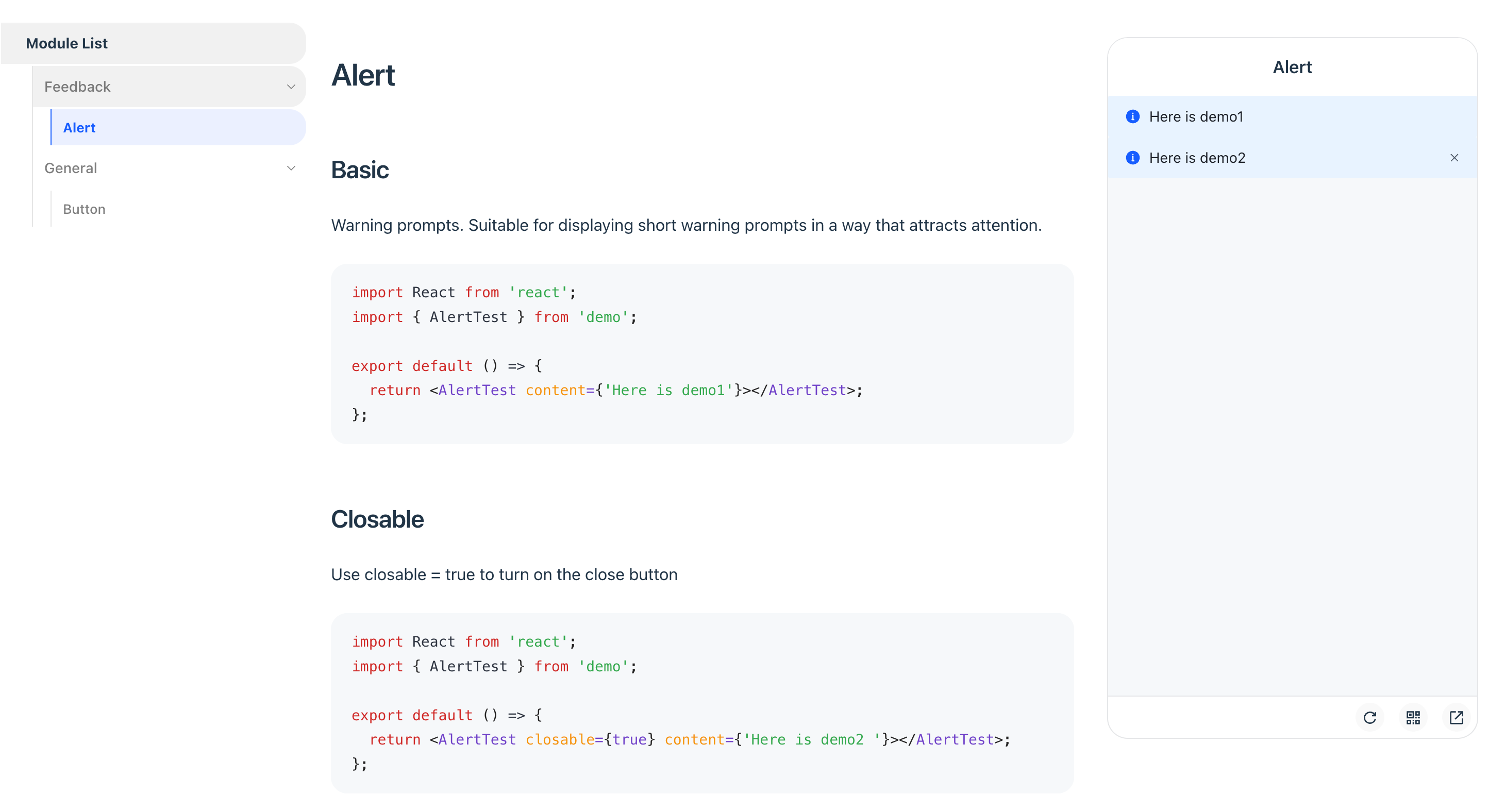
This mode displays a fixed iframe preview area on the right side of the page, ideal for mobile component library documentation.
Syntax:
Rendering result:
Options
This plugin accepts a configuration object with the following type definition:
defaultRenderMode
- Type:
'pure' | 'preview' - Default:
'pure'
Configures the default rendering behavior for code blocks that don't explicitly declare pure or preview.
```tsx pure: Render as a regular code block```tsx: Render based ondefaultRenderModeconfiguration```tsx preview: Render as a code block with preview component
defaultPreviewMode
- Type:
'internal' | 'iframe-follow' | 'iframe-fixed' - Default:
'internal'
Configures the default preview mode for ```tsx preview.
```tsx preview: Render based ondefaultPreviewModeconfiguration```tsx preview="internal": Render using internal mode```tsx preview="iframe-follow": Render using follow iframe mode```tsx preview="iframe-fixed": Render using fixed iframe mode
iframeOptions
This plugin starts a separate Rsbuild instance for the iframe mode's dev server and build process, completely isolated from the Rspress documentation compilation.
iframeOptions.devPort
- Type:
number - Default:
7890
Configures the dev server port for iframe preview. Use this when the default port is occupied.
iframeOptions.builderConfig
Configures Rsbuild build options for the iframe, such as adding global styles or scripts.
iframeOptions.customEntry
Configures a custom entry to support other frameworks like Vue.
Only available in preview="iframe-follow" mode.
Here is an example for the Vue framework:
previewLanguages
- Type:
string[] - Default:
['jsx', 'tsx']
Configures the code languages that support preview. To support other formats like JSON or YAML, use this in conjunction with previewCodeTransform.
previewCodeTransform
- Type:
(codeInfo: { language: string; code: string }) => string - Default:
({ code }) => code
Performs custom transformation on code before preview.
The following example shows how to transform JSON Schema into a renderable React component:
You can configure it as follows:
Migrating from V1
When migrating from Rspress V1, the plugin functionality remains unchanged. Only the MDX source code syntax has the following adjustments:
<code src="./foo.tsx"/>should be migrated to File Code Block```tsx file="./foo.tsx"- The
defaultPreviewModeoption replacesiframeOptions.positionandpreviewMode - The default value of
defaultRenderModechanged from'preview'to'pure'
Example 1:
Before: Required declarations in both config file and MDX file.
After: Only declare in the MDX file.
Example 2:
Before: Using iframe or previewMode="iframe" attribute.
After: Use the unified preview="..." attribute.