@rspress/plugin-preview
用于预览 md(x) 文件代码块中的组件,适合编写组件库文档。
安装
npm add @rspress/plugin-preview -D
yarn add @rspress/plugin-preview -D
pnpm add @rspress/plugin-preview -D
bun add @rspress/plugin-preview -D
deno add npm:@rspress/plugin-preview -D
使用
1. 安装插件
首先在配置文件中写入以下的配置:
rspress.config.ts
import { defineConfig } from '@rspress/core';
import { pluginPreview } from '@rspress/plugin-preview';
export default defineConfig({
plugins: [pluginPreview()],
});
2. 在 mdx 文件中使用
在 mdx 文件中使用 ```tsx preview 的语法:
example.mdx
```tsx preview
import { useState } from 'react';

function App() {
  const [count, setCount] = useState(0);

  return (
    <div style={{ textAlign: 'center' }}>
      <p>当前计数: {count}</p>
      <button onClick={() => setCount(count + 1)}>+</button>
      <button onClick={() => setCount(count - 1)}>-</button>
    </div>
  );
}

export default App;
```
它的渲染结果如下:
提示
- 目前只在
.mdx 文件中生效。
- 需要将组件作为 default 导出,Rspress 会自动渲染这个组件。
3. 将组件代码写在其他文件中
除了将组件代码写在 mdx 文件的代码块中,你还可以配合文件代码块 一起使用,将示例代码写在其他文件中。
example.mdx
```tsx file="./_demo.tsx" preview

```
_demo.tsx
import { useState } from 'react';

function App() {
  const [count, setCount] = useState(0);

  return (
    <div style={{ textAlign: 'center' }}>
      <p>当前计数: {count}</p>
      <button onClick={() => setCount(count + 1)}>+</button>
      <button onClick={() => setCount(count - 1)}>-</button>
    </div>
  );
}

export default App;
它的渲染结果如下:
切换为 iframe 预览模式
该插件内置了多种预览模式,通过调整 preview="..." meta 信息可切换不同的预览模式。例如,你可以通过 ```tsx preview="iframe-follow" 切换为 iframe-follow 模式。
```tsx preview 等同于 ```tsx preview="{defaultPreviewMode}",由 defaultPreviewMode 配置决定。
提示
iframe 预览模式中的代码有单独的编译环境和运行环境。
-
单独的编译环境,代码块中的示例代码会由单独的 Rsbuild 实例作为 entry 编译,可以注入 sass 或者 less 变量等。
-
单独的运行环境,有效避免样式与文档站中冲突,可以加载组件库本身的 base.css。
preview="internal"
"internal" 是默认的预览模式,组件直接内嵌在文档中渲染。
语法:
example.mdx
```tsx file="./_demo.tsx" preview

```
或者
example.mdx
```tsx file="./_demo.tsx" preview="internal"

```
渲染结果:
preview="iframe-follow"
该模式会在代码块右侧显示一个跟随的 iframe 预览区域。
语法:
example.mdx
```tsx file="./_demo.tsx" preview="iframe-follow"

```
渲染结果:
preview="iframe-fixed"
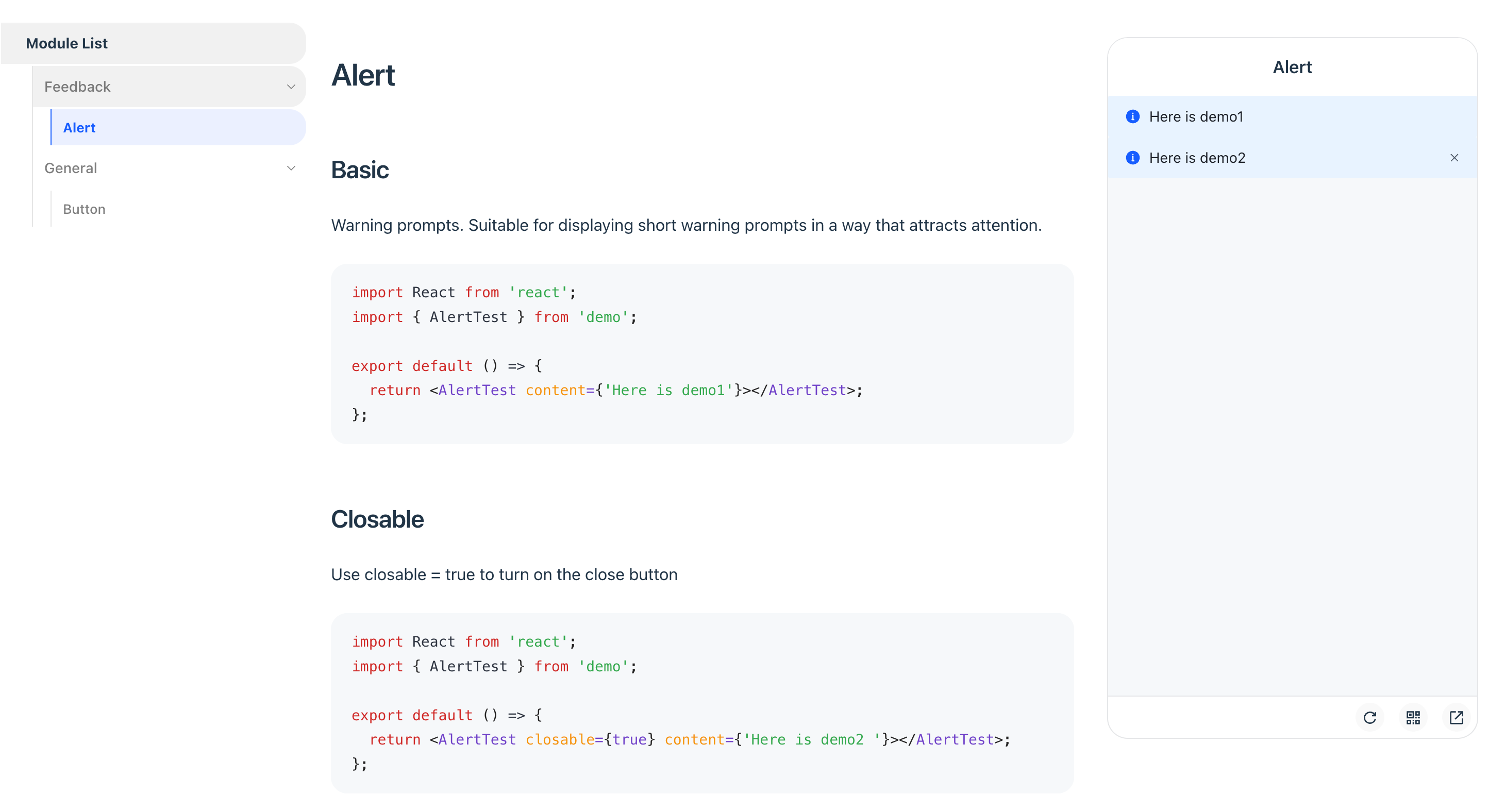
该模式会在页面右侧显示一个固定的 iframe 预览区域,适合移动端组件库文档。
语法:
example.mdx
```tsx file="./_demo.tsx" preview="iframe-fixed"

```
渲染结果:
配置
该插件接受一个配置对象,类型定义如下:
interface PreviewOptions {
  defaultRenderMode?: 'pure' | 'preview';
  defaultPreviewMode?: 'internal' | 'iframe-fixed' | 'iframe-follow';
  iframeOptions?: IframeOptions;
  previewLanguages?: string[];
  previewCodeTransform?: (codeInfo: {
    language: string;
    code: string;
  }) => string;
}

interface IframeOptions {
  devPort?: number;
  builderConfig?: RsbuildConfig;
  customEntry?: (meta: CustomEntry) => string;;
}
defaultRenderMode
- 类型:
'pure' | 'preview'
- 默认值:
'pure'
配置未显式声明 pure 或 preview 的代码块的默认渲染行为。
```tsx pure:渲染为普通代码块```tsx:根据 defaultRenderMode 配置渲染 ```tsx preview:渲染为可预览组件
defaultPreviewMode
- 类型:
'internal' | 'iframe-follow' | 'iframe-fixed'
- 默认值:
'internal'
配置 ```tsx preview 的默认预览模式。
```tsx preview:根据 defaultPreviewMode 配置渲染 ```tsx preview="internal":使用内嵌模式渲染 ```tsx preview="iframe-follow":使用跟随 iframe 模式渲染 ```tsx preview="iframe-fixed":使用固定 iframe 模式渲染
iframeOptions
该插件会启动一个独立的 Rsbuild 实例用于 iframe 模式的开发服务器和构建,编译流程与 Rspress 文档完全隔离。
iframeOptions.devPort
配置 iframe 预览的开发服务器端口。当默认端口被占用时可手动指定。
iframeOptions.builderConfig
配置 iframe 的 Rsbuild 构建选项,例如添加全局样式或脚本。
iframeOptions.customEntry
配置自定义入口以支持其他框架(如 Vue)。
注意
仅在 preview="iframe-follow" 模式下可用。
以下是 Vue 框架的配置示例:
import { defineConfig } from '@rspress/core';
import { pluginPreview } from '@rspress/plugin-preview';
import { pluginVue } from '@rsbuild/plugin-vue';

export default defineConfig({
  // ...
  plugins: [
    pluginPreview({
      previewMode: 'iframe',
      previewLanguages: ['vue'],
      iframeOptions: {
        position: 'follow',
        customEntry: ({ demoPath }) => {
          return `
          import { createApp } from 'vue';
          import App from ${JSON.stringify(demoPath)};
          createApp(App).mount('#root');
          `;
        },
        builderConfig: {
          plugins: [pluginVue()],
        },
      },
    }),
  ],
});
previewLanguages
- 类型:
string[]
- 默认值:
['jsx', 'tsx']
配置支持预览的代码语言。如需支持其他格式(如 JSON、YAML),可配合 previewCodeTransform 使用。
- 类型:
(codeInfo: { language: string; code: string }) => string
- 默认值:
({ code }) => code
在预览前对代码进行自定义转换。
以下示例展示如何将 JSON Schema 转换为可渲染的 React 组件:
{
  "type": "div",
  "children": "Render from JSON"
}
可以做如下配置:
pluginPreview({
  previewLanguages: ['jsx', 'tsx', 'json'],
  previewCodeTransform(codeInfo) {
    if (codeInfo.language === 'json') {
      return `
import React from 'react';

const json = ${codeInfo.code};

export default function() {
return React.createElement(json.type, null, json.children);
}
`;
    } else {
      return codeInfo.code;
    }
  },
});
从 V1 迁移
从 Rspress V1 迁移时,插件功能保持不变,仅 MDX 源码的书写方式有以下调整:
<code src="./foo.tsx"/> 迁移为文件代码块 ```tsx file="./foo.tsx"defaultPreviewMode 配置项替代了 iframeOptions.position 和 previewModedefaultRenderMode 默认值从 'preview' 改为 'pure'
迁移示例
示例 1:
迁移前:需要同时在配置文件和 MDX 文件中声明。
pluginPreview({
  previewMode: 'iframe',
  iframeOptions: { position: 'fixed' },
});
迁移后:仅需在 MDX 文件中声明。
```tsx preview="iframe-fixed"

```
示例 2:
迁移前:使用 iframe 或 previewMode="iframe" 属性。
```tsx iframe

```

{/* 或者 */}

<code src="./_demo.tsx" previewMode="iframe" />
迁移后:统一使用 preview="..." 属性。
```tsx preview="iframe-follow"

```

```tsx file="./_demo.tsx" preview="iframe-follow"

```